Start with a readable copy
Open the file in Files first and check that its pages are readable. Use patterns you own or have permission to use. If a PDF is password-protected, obtain an unlocked copy you are entitled to use. Keep the original file somewhere safe.
Bring it into your pattern library
In Patterns, import the PDF. Give it a recognisable title and add useful categories or notes. You can also import pattern images or scan paper pages. Check the page order and orientation before you begin.
Create a project for this attempt
Create a project linked to the pattern, then open it from Ongoing. Add your chosen size, needles and yarn. A project is the record of one attempt: making the pattern again should use another project so earlier notes stay intact.
Choose your writing tool
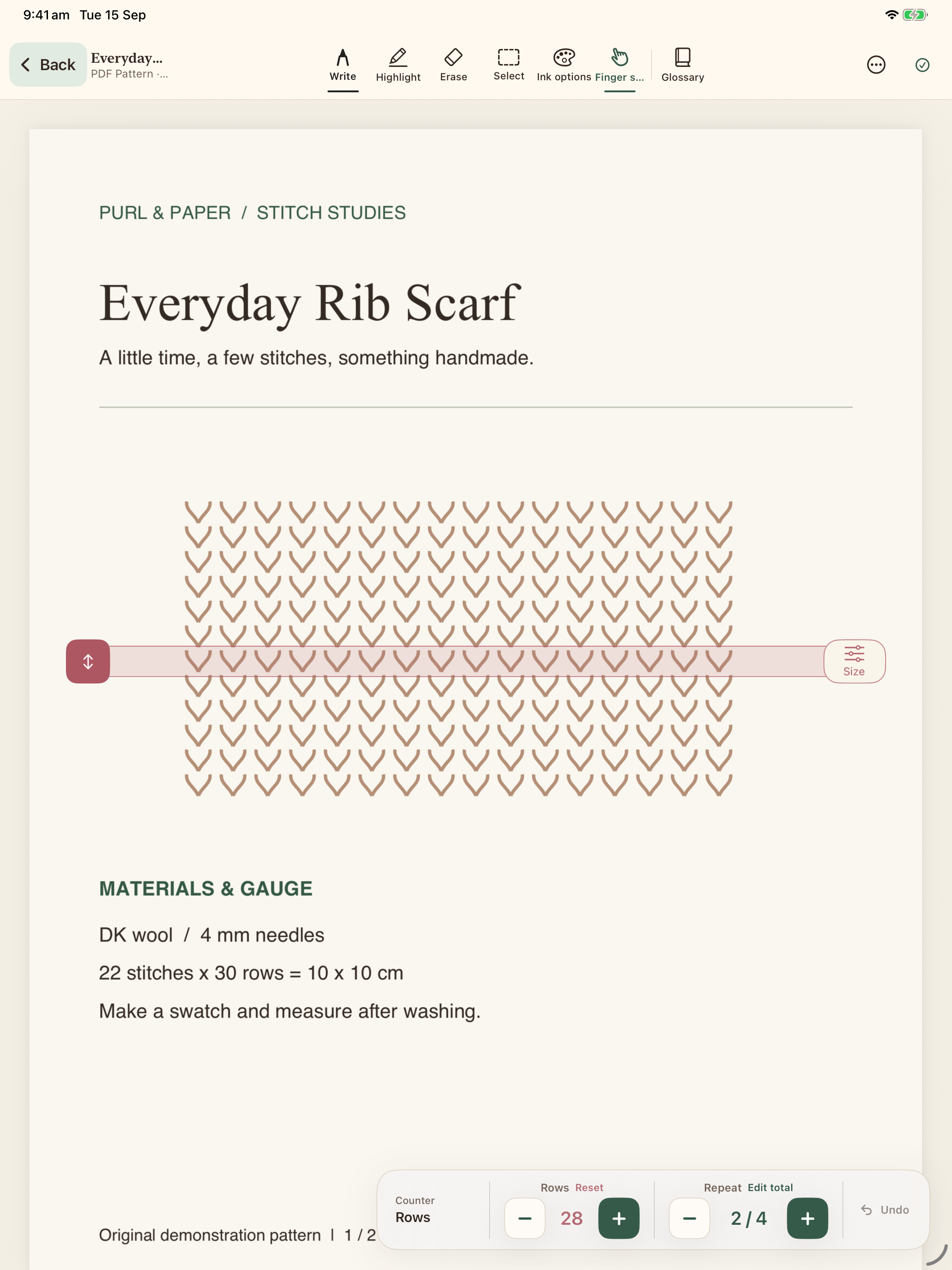
On iPad, choose Write or Highlight from the project toolbar. Open Ink options to set a comfortable colour and stroke size. Use Apple Pencil for handwriting while your fingers navigate the page. Enable finger drawing if you prefer touch. Erase removes ink; Select lets you work with selected marks.
Make notes you will understand later
Circle the size you are following, highlight an important instruction and record deliberate changes in the typed project notes. Avoid covering chart symbols with opaque ink. Try a short mark first and check that your chosen colour remains readable.
Save something you can come back to
Project changes are saved locally. Export an annotated PDF for a readable copy of your marked pages, or export a library backup from Settings to retain editable project data. These are different exports. Backups are not encrypted by the app, so choose a trusted destination.
This guide covers the current release. Your imported pattern’s instructions remain the source of truth for the project.
See it in the app